


How to password protect a PDF file is one of the questions we hear most often, and for good reason. Whether you're emailing a signed contract, sharing financial records, or preparing a paid PDF eBook for sale, an unprotected file can end up in the wrong hands with zero effort. A lot has changed since Adobe Acrobat X was the standard tool for the job. This guide covers the two most reliable ways to lock down a PDF today, plus what to use instead if you're distributing content at scale.
Why PDF Password Protection Still Matters
Documents move fast. Proposals, invoices, HR files, and eBooks get shared over email, cloud storage, and marketplaces every day, often without a second thought. Without protection, anyone who gets a copy of the file can open, copy, or forward it freely. A password doesn't hide a PDF, but it does encrypt its contents, so only someone with the correct password can read what's inside. That one step helps with privacy regulations like GDPR and HIPAA, protects proprietary business information, and gives content creators a basic layer of control before a file ever leaves the inbox.
Open Passwords vs. Permissions Passwords
Before protecting a file, it helps to know a PDF can use two different kinds of passwords. A document open password (also called a user password) locks the file so nobody can view it at all without the correct password. A permissions password (or owner password) leaves the file viewable but restricts actions like printing, editing, or copying text. You can apply either one on its own, or combine both if you want the document both private and copy-restricted.
Method 1: Password Protect a PDF with Adobe Acrobat
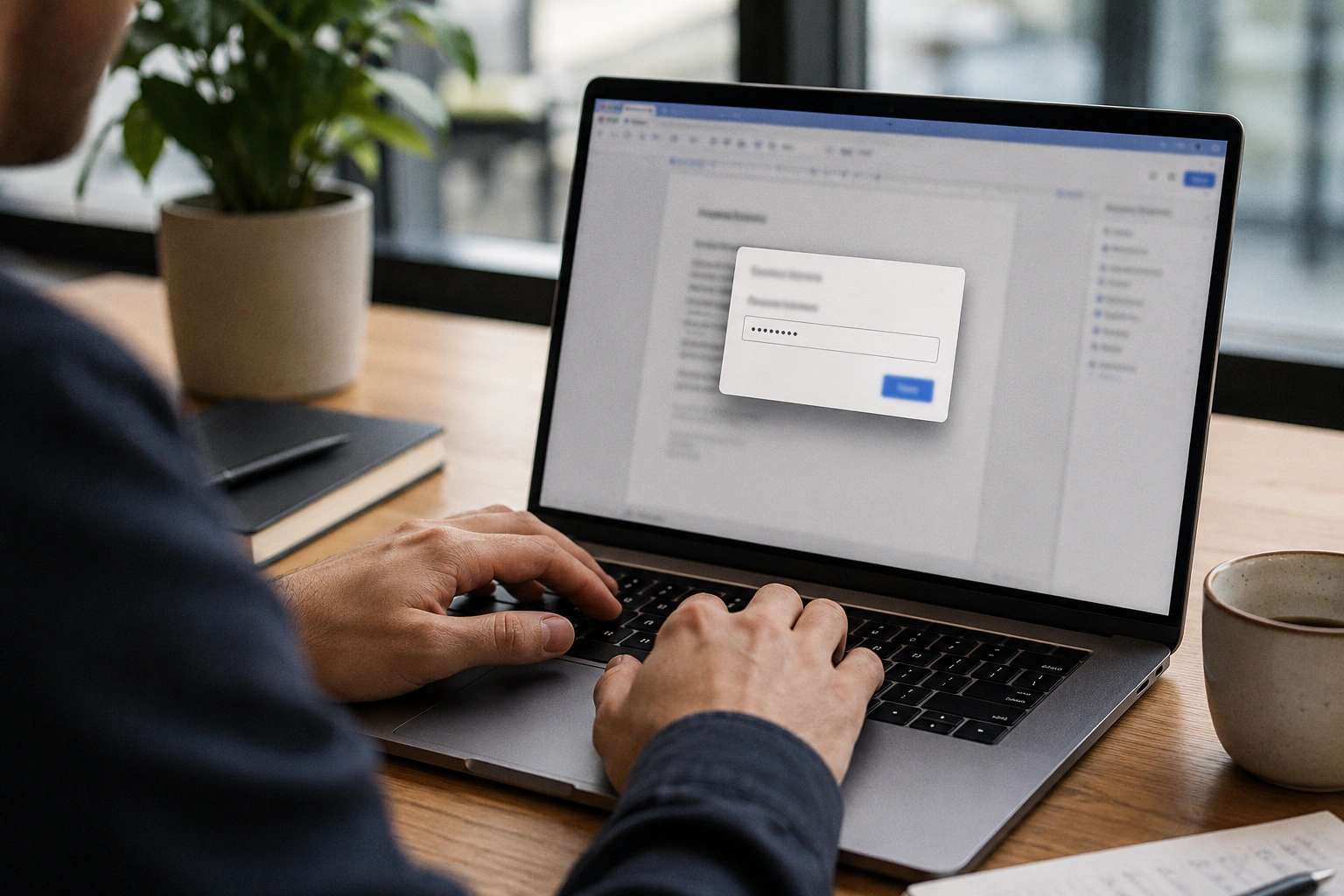
Adobe Acrobat is still the most widely used tool for this job, and the steps are quick whether you're on desktop, mobile, or the web app.
- Open the PDF in Adobe Acrobat (desktop app, mobile app, or Acrobat on the web).
- Go to File > Protect Using Password (or Tools > Protect > Protect Using Password, depending on your version).
- Choose whether to set a password for Viewing (an open password) or Editing (a permissions password).
- Type your password, then retype it to confirm. Acrobat's built-in strength meter will flag anything too weak.
- For sensitive files, choose the advanced encryption option and select AES-256 encryption, the current recommended standard for PDF security.
- Click Apply (or Set Password), then save the file.
You can now send the file to people you trust. Just share the password through a separate channel, such as a text message or phone call, rather than in the same email as the attachment. For the full walkthrough with screenshots, Adobe's official guide covers every version of Acrobat, including the free web-based tool if you'd rather skip the desktop app entirely.
Method 2: Free, Built-In Alternatives
Don't have an Acrobat subscription? You still have solid options. On a Mac, open the PDF in Preview, go to File > Export, click Permissions, check Require Password to Open Document, set your password, and click Apply. Windows users can achieve a similar result through several reputable browser-based PDF tools that apply the same AES encryption Acrobat uses. Whichever tool you pick, the encryption strength matters more than the interface: look for AES-128 or, ideally, AES-256 support before trusting a file to it.
Selling or Distributing PDFs at Scale? Password Protection Isn't Enough

A password works well for a one-off email to someone you know. It falls apart the moment a file is meant for public sale. Once a buyer has the password, they can forward it along with the file to anyone, and there's no way to track or revoke access afterward. That's the gap real DRM (digital rights management) is built to close.
Adobe Content Server, the technology EditionGuard is built on, is still the backbone of most professional eBook DRM and now runs in its sixth generation, with support for device limits, lending periods, and flexible pricing. For publishers who want lighter-weight protection, open standards like Readium LCP offer similar control with simpler licensing, and social DRM (personalized watermarking) is a good middle ground for free or low-cost titles where deterring casual sharing matters more than hard encryption. EditionGuard supports all three, so you can match the protection level to the value of what you're selling, without the cost of licensing and hosting a DRM server yourself.
Quick Best Practices
- Use AES-256 encryption whenever the tool supports it.
- Choose passwords of at least 12 to 16 characters, and avoid names, dates, or dictionary words.
- Never send the password in the same message as the protected file.
- Remember a password only protects that file. It can't recall an unprotected copy that's already out there.
Whichever method fits your situation, the goal is the same: keep your content in the hands of the people you intend to reach. Have questions about your specific setup, or wondering whether DRM makes more sense than a simple password for what you're selling? Drop a comment below or reach out to our team. We're always happy to help.